Deleting your Amazon account may seem complicated, but it’s actually quite simple if you follow the right steps. In this article, we’ll guide you through all the methods you need to complete this task without any problems. Be sure to consider the implications before proceeding, as you’ll lose access to all your associated data and services.
Whether you want to close your Amazon account for personal reasons or because you no longer use its services, you’ll find all the information you need to do so effectively here.
How to delete an Amazon account from your mobile phone
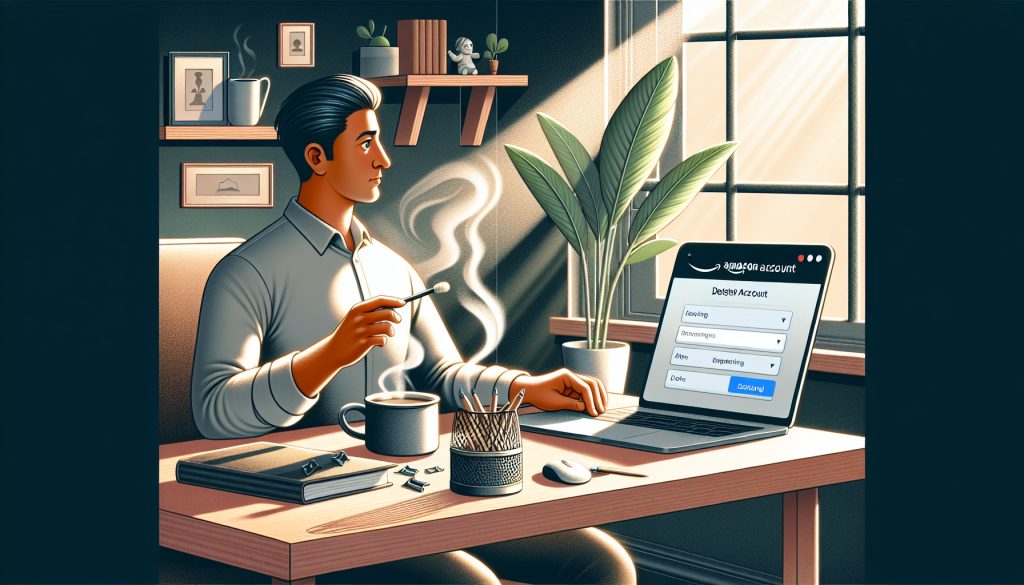
Deleting your Amazon account from your mobile phone is fairly straightforward. First, open the Amazon app and go to the Customer Service section.
Once there, look for the option to submit a request to close your account. Then follow the on-screen instructions to complete the process. Keep in mind that you’ll need to provide a reason for closing your account.
- Open the Amazon app.
- Go to Customer Service.
- Select the option to delete your account.
- Complete the request by providing a reason.
After you submit your request, Amazon will send you a confirmation email. Remember that the process is irreversible, so make sure you really want to delete your Amazon account.
Can I delete my Amazon account without signing in?
You can’t delete your Amazon account without signing in. The platform requires you to verify your identity to protect the integrity of your data. However, if you’ve forgotten your password, you can reset it by following Amazon’s account recovery process.
Once you’ve signed in to your account, you can proceed with deleting it by following the steps mentioned above. Make sure you can access the email address associated with your account so you can receive confirmation of the deletion.
How to delete an Amazon Prime account
If you're wondering how to delete an Amazon Prime account, the process is similar to deleting a regular account. Sign in to your Amazon account and go to the Subscriptions section.
In this section, you'll find the option to cancel your Amazon Prime subscription. Once you've canceled your subscription, you can proceed to delete your account by following the general instructions. Keep in mind that you'll lose access to all Prime benefits, such as fast shipping and exclusive content.
- Sign in to your Amazon account.
- Go to My Account and then to Subscriptions.
- Cancel your Amazon Prime subscription.
- Proceed to delete your account as described above.
How to close an Amazon Seller account
Amazon sellers may have their own reasons for wanting to close their accounts. To close an Amazon Seller account, first make sure there are no pending transactions.
Once you've confirmed this, sign in to your seller account and go to Settings. There you'll find the option to close your account. It's essential to follow all the steps provided and be prepared to confirm your decision via an email you'll receive afterward.
How to delete my Amazon Business account
Deleting an Amazon Business account follows a process similar to that for regular accounts. Sign in and go to your account settings. Make sure all orders and transactions have been completed before proceeding.
Once you've completed these steps, you can submit a request to close your account. Remember that you'll lose access to all the service's data and features.
How to delete my Amazon Music account
If you want to delete your Amazon Music account, first cancel any active subscriptions. Go to your Amazon Music account settings and select the option to cancel your subscription.
After canceling, start the process of deleting your Amazon account on the website or in the app. Keep in mind that you won't be able to recover any of your playlists or data.
Why would I want to cancel my Amazon Prime subscription?
There are various reasons to cancel an Amazon Prime subscription. Some users find they don't use enough of the benefits, such as fast shipping or access to streaming content. Others may want to cut costs or find more convenient alternatives.
It's essential to think about what you really need before deciding to cancel your Amazon Prime subscription. If you're only considering it, you might be able to pause your subscription instead of canceling it altogether.
Related questions about deleting Amazon accounts
How can I delete my Amazon account?
To delete your Amazon account, go to the account closure option in your profile settings. Remember that you'll lose access to your data and services, so make sure you're certain before proceeding.
How do I cancel my Amazon account?
Canceling your Amazon account means closing it by following the steps outlined above. Make sure you meet all the requirements, and keep in mind that this process is irreversible.
What happens if you delete your Amazon account?
If you decide to delete your Amazon account, you'll lose access to all your orders, personal data, and any information associated with your account. This process is irreversible, so make sure it's what you really want.
How do I remove an Amazon account from a device?
To remove an Amazon account from a device, go to the app or device settings, look for the linked accounts option, and select the option to remove it. This will unlink your account without necessarily closing it completely.
If you'd like to watch a video that walks you through the account deletion process, you can check out this resource: