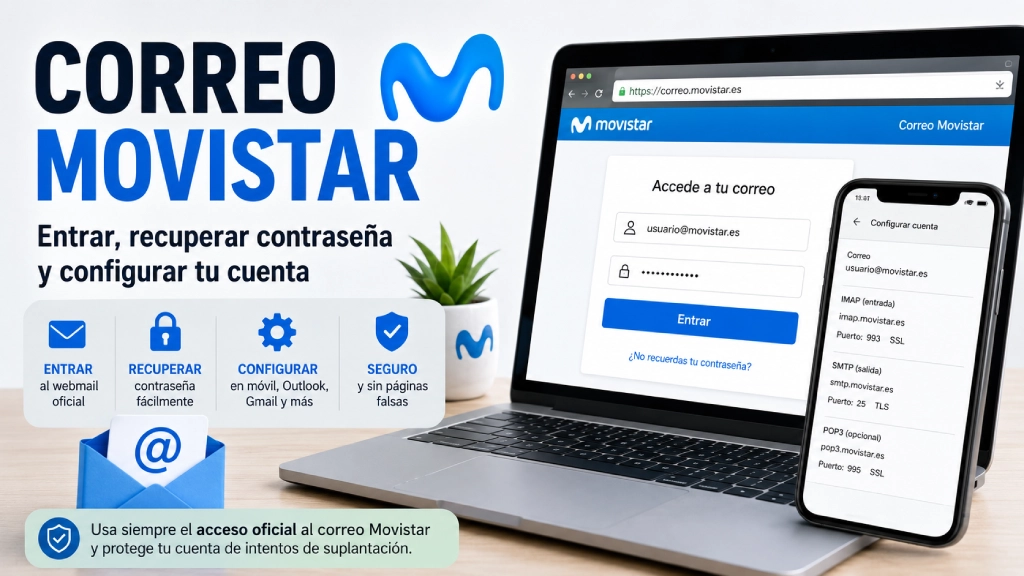
Movistar email lets you access old email accounts such as @movistar.es or @telefonica.net. If you still use one of these addresses, you can sign in through the official webmail service, recover your password if you can't remember it, and configure the account on your phone, in Outlook, Thunderbird, Mail, or Gmail using IMAP, POP3, and SMTP.
The safest way to sign in is to always use Movistar's official webmail and avoid unfamiliar websites that may be trying to imitate the login page. If you're having trouble signing in, first check that you've entered your full email address correctly and that the password matches that account.
Quick summary
To access Movistar email, go to the official webmail service, enter your full @movistar.es or @telefonica.net address, and type in your password. If you can't remember your password, use the password recovery option. To set up your email on a phone or in Outlook, use the IMAP, POP3, and SMTP servers for your domain.
How to access Movistar email
To access Movistar email in your browser, go to the official webmail service and sign in with your full email address and password.
- Open a browser on your computer, phone, or tablet.
- Go to Movistar's official webmail login page.
- Enter your full email address, for example usuario@movistar.es or usuario@telefonica.net.
- Enter your email account password.
- Click Sign in to open your inbox.
Official login
You should access Movistar email on the web through the official webmail service. For security, don't enter your details through links received by email or SMS, or on websites you don't recognize.
If you've bookmarked the login page, check that the link is correct. When in doubt, it's best to type the address directly into your browser.
What is Movistar email?
Movistar email is the email service associated with older Telefónica and Movistar accounts. Many people still have addresses ending in @movistar.es or @telefonica.net, especially if they've used them for years for banking, shopping, social media, personal contacts, or important services.
Although many people now use Gmail, Outlook, or other modern services, an old Movistar account may still be important if it's linked to password recovery, bills, personal communications, or old registrations.
Can I create a new Movistar email account?
Movistar email is primarily for users who already had an account. In practice, it's not an open service where you can create new accounts, as you can with Gmail or Outlook.
If you don't have an old @movistar.es or @telefonica.net account, you probably won't be able to create a new Movistar email account from scratch. If you already have one, you can try to sign in, recover your password, or set it up in an email app.
How to recover your Movistar email password
If you can't remember your Movistar email password, use the recovery option on the webmail login page.
Recommended steps:
- Go to Movistar's official webmail service.
- Look for the option to recover your password or sign in if you can't remember your details.
- Enter the affected email address.
- Follow the on-screen instructions.
- Once you regain access, save your new password somewhere safe.
Before starting the recovery process, have your account information ready, such as your full email address, the account holder's details if requested, or any associated information that may help verify access.
Can't access Movistar email? Quick checks
If you can't access Movistar email, check these basics first before changing more advanced settings.
- Check that you've entered the full address, including @movistar.es or @telefonica.net.
- Make sure there are no spaces before or after the email address.
- Check the password's uppercase and lowercase letters and special characters.
- Try another browser or use private browsing mode.
- Clear your cache and cookies if the page isn't loading properly.
- Check whether you can sign in from another device.
- Use password recovery if you can't remember your password.
If you can access webmail but not Outlook, Gmail, or your phone, the problem is usually with the email app's settings, not the account itself.
Movistar email login: what you need
To sign in through a browser, you only need two things: your full email address and your password. To set it up in an email app, you'll need more information.
| Use | Required details | Tip |
|---|---|---|
| Access via webmail | Full email address and password. | Always use the official login page. |
| Set up on a mobile device | Email address, password, IMAP/POP3 and SMTP server settings. | IMAP is usually more convenient if you use multiple devices. |
| Set up in Outlook | Email address, password, ports and security settings. | Check the SMTP server settings in particular if you can't send emails. |
| Reset password | Affected email address and verification details. | Do this from the official login page. |
Set up your @movistar.es email
If your account ends in @movistar.es, these are the usual settings to use when setting up your account in an email app.
| Type | Server | Port | Security |
|---|---|---|---|
| IMAP | imap.movistar.es | 993 | SSL |
| POP3 | pop3.movistar.es | 995 | SSL |
| SMTP | smtp.movistar.es | 25 | TLS |
For the username, use your full email address. For the password, use your Movistar email password.
Set up your @telefonica.net email
If your account ends in @telefonica.net, use the servers for Telefónica.
| Type | Server | Port | Security |
|---|---|---|---|
| IMAP | imap.telefonica.net | 993 | SSL |
| POP3 | pop3.telefonica.net | 995 | SSL |
| SMTP | smtp.telefonica.net | 25 | TLS |
As with @movistar.es accounts, we recommend using your full email address as the username.
IMAP or POP3: Which Should You Choose?
When setting up your Movistar email, you can usually choose between IMAP and POP3. For most users, IMAP is usually the best choice, because it keeps your email synchronized between the server and your devices.
| Option | How it works | When to choose it |
|---|---|---|
| IMAP | Synchronizes your email with the server. | If you use a mobile device, computer and webmail. |
| POP3 | Downloads email to one device. | If you only check your email on one specific device. |
If you're unsure, start with IMAP. It's the most practical option if you want to see the same emails on multiple devices.
How to Set Up Movistar Email on Your Mobile Phone
To add your Movistar email to your mobile phone, create a new account in the email app and choose manual setup if your device doesn't detect the settings automatically.
On Android
- Open the email app or Gmail.
- Go to Settings and add a new account.
- Choose “Other” or “Personal Account.”
- Enter your full email address.
- Select manual setup.
- Choose IMAP or POP3.
- Enter the relevant server details, ports, and security settings.
On iPhone
- Open Settings.
- Go to Mail.
- Tap Accounts.
- Select Add Account.
- Choose Other.
- Tap Add Mail Account.
- Enter your account details and complete the manual setup if necessary.
After saving the account, try sending and receiving an email. If you can receive emails but not send them, check the SMTP section.
How to Set Up Movistar Email in Outlook
To use Movistar email in Outlook, add a new account and enter the details manually if Outlook doesn’t configure it automatically.
- Open Outlook.
- Go to account settings.
- Select Add a new account.
- Enter your full email address.
- Choose manual setup if necessary.
- Select IMAP or POP3.
- Enter the incoming and outgoing server details.
- Configure the ports and security type.
- Save your changes and test sending and receiving email.
One of the most common Outlook issues is being able to receive emails but not send them. If this happens, check the SMTP server, port, security type, and authentication settings.
How to Set Up Movistar Email in Gmail
Gmail lets you check emails from other accounts in its settings. To add your Movistar email, go to Gmail settings and look for the option to check mail from other accounts.
Before setting it up in Gmail, make sure you can sign in to the official webmail site with the same password. If you can’t access webmail, Gmail won’t be able to connect properly either.
When Gmail asks for the server details, use the ones for your domain: @movistar.es or @telefonica.net.
I Can’t Send Emails from Movistar
If you can receive messages but can’t send emails from Movistar, the problem is most likely with the outgoing SMTP server.
Check the following:
- Make sure the SMTP server matches your domain.
- Make sure the SMTP port is configured correctly.
- Make sure the security type is TLS.
- Make sure authentication for the outgoing server is enabled.
- Make sure you’re using your full email address as the username.
- Make sure you’re using your email password, not a different one.
- Make sure you can send emails from the official webmail site.
If you can’t send emails from webmail either, there may be a temporary block, an account issue, or a service outage.
I’m Not Receiving Emails in My Movistar Account
If you’re not receiving emails, the problem could be with the incoming server, your filters, a full mailbox, or the account itself.
Check the following:
- Sign in to webmail and see if the messages appear there.
- Check your spam or junk folder.
- Check whether you have any active rules or filters.
- Make sure your mailbox isn’t full.
- Check your IMAP or POP3 settings.
- Send a test email from another account.
If emails appear in webmail but not on your phone or in Outlook, the problem is usually with your device settings.
My Movistar email inbox is full
If your inbox is full, you may not receive new messages, or some emails may bounce. In that case, sign in to webmail and check which folders are taking up the most space.
To free up space:
- Delete old emails you no longer need.
- Check your Sent folder.
- Delete large attachments.
- Empty the Trash after deleting messages.
- Check your spam or junk folder.
Moving messages to the Trash isn't enough: you should empty it to actually free up space.
Movistar email security: avoid fake websites
Many Movistar accounts are old and may be linked to important services. That's why it's especially important to protect them.
- Don't enter your password on unofficial websites.
- Don't follow suspicious links received by email or text message.
- Don't share your password with anyone.
- Change your password if you suspect someone may have accessed your account.
- Check which services are linked to that email address.
- Don't use the same password as you do on other websites.
If an old account is linked to banks, social media or online stores, it's especially important to keep access to it secure.
What to do if you no longer use your Movistar email
If you have an old Movistar account that you rarely use, don't abandon it without first checking which services depend on it.
- Sign in to your inbox and check recent messages.
- Look for emails from banks, social media platforms, stores, government agencies or other important services.
- Change the recovery email address on those accounts.
- Save important messages or contacts.
- Set up an alternative account if you need one.
Abandoning an old account can make it harder to recover access to other services if you ever need to reset a password.
Alternatives to Movistar email
If you no longer want to rely on an old Movistar account, you can use services such as Gmail, Outlook or Yahoo, or get an email address with your own domain.
For personal use, Gmail or Outlook are usually convenient options. For professional use, an email address with your own domain can project a more professional image and give you greater control.
In any case, if you're going to change email providers, do it in an orderly way: update your important accounts first and keep your old email active for a while during the transition.
Common problems with Movistar email
| Problem | Possible cause | Recommended solution |
|---|---|---|
| I can't sign in | Incorrect password or mistyped email address. | Check that you're using your full username and reset your password. |
| I can receive emails but can't send them | SMTP error. | Check the server, port, TLS and authentication settings. |
| I'm not receiving emails | Incorrect IMAP/POP settings or a full inbox. | Check webmail, filters and available storage. |
| Outlook displays an error | Incorrect manual settings. | Re-enter the server addresses and ports. |
| Gmail won't connect | Incorrect password or server. | Check webmail access first. |
Conclusion: How to manage your Movistar email account
Movistar email is still useful for people who have an old account ending in @movistar.es or @telefonica.net. You can sign in through the official webmail service, recover your password if you’ve forgotten it, and set up your account on a mobile phone, Outlook, Gmail, or other email programs using IMAP, POP3, and SMTP.
If you run into problems, start with the basics: sign in to webmail first, check your username and password, and then review your device settings. If the account is important to you, protect it carefully and update the services linked to it.
If you’re interested in more practical guides to digital tools, explore our content on internet, technology, or education.
Frequently Asked Questions About Movistar Email
How can I access my Movistar email?
You can access your Movistar email through the official webmail service by entering your full @movistar.es or @telefonica.net address and your account password.
What is the official Movistar email login page?
You should access Movistar email online through Movistar’s official webmail service. For security, avoid entering your details on unfamiliar websites or following suspicious links.
How do I recover my Movistar email password?
To recover your password, go to the webmail sign-in page and use the password or account recovery option if you can’t remember your details.
What servers does @movistar.es email use?
@movistar.es accounts use servers such as imap.movistar.es for IMAP, pop3.movistar.es for POP3, and smtp.movistar.es for SMTP, with the appropriate ports and security settings.
What servers does @telefonica.net email use?
@telefonica.net accounts use imap.telefonica.net, pop3.telefonica.net, and smtp.telefonica.net for incoming and outgoing mail settings in email apps.
Is it better to set up Movistar email with IMAP or POP3?
IMAP is usually better if you use email on multiple devices because it synchronises your mailbox with the server. POP3 may work if you only want to download emails to a single device.
Why can’t I send emails from Movistar?
If you can receive emails but can’t send them, check the SMTP server, port, security type, authentication, and whether you can send emails successfully through webmail.