There are two main ways to access a PC's BIOS or UEFI: press a key such as F2, F10, Esc, or Del when you turn on the computer, or use Advanced Startup in Windows. The easiest option in Windows 10 and Windows 11 is usually to go to Recovery, restart in Advanced Startup, and select UEFI Firmware Settings.
The problem is that different computers use different keys. F2 works on some laptops, F10 on others, and Esc on others, while Del is commonly used on many desktop computers. Modern devices also boot so quickly that you may not have time to press the right key.
Quick summary: If your PC starts up normally, go to Settings > System > Recovery > Advanced startup in Windows. Then select Troubleshoot > Advanced options > UEFI Firmware Settings > Restart. If you prefer to do this during startup, restart your PC and repeatedly press F2, F10, Esc, or Del, depending on the brand.
What are BIOS and UEFI?
The BIOS is the basic system that runs when you turn on your computer. It checks the hardware, prepares the computer, and allows the operating system to start.
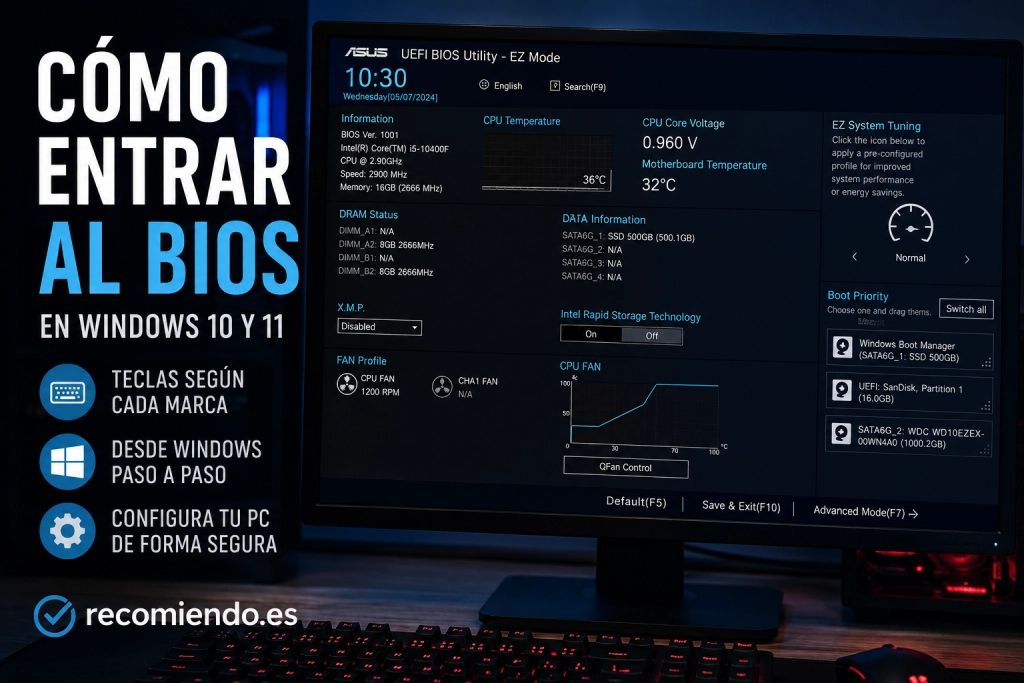
Modern computers typically use UEFI rather than a traditional BIOS. UEFI performs a similar function, but it is more advanced, supports faster startup, offers better security options, and works with modern features such as Secure Boot and TPM.
Although they are technically different, many people still use the word BIOS to refer to UEFI as well. So when someone asks how to enter the BIOS in Windows 11 or Windows 10, they usually mean opening the computer's firmware settings.
How to Enter the BIOS from Windows 11
In Windows 11, you can access the BIOS or UEFI without pressing any keys during startup. This is especially useful if your computer starts up too quickly.
- Open the Start menu.
- Go to Settings.
- Go to System.
- Select Recovery.
- Look for the Advanced startup option.
- Click Restart now.
- When the blue menu appears, select Troubleshoot.
- Then select Advanced options.
- Choose UEFI Firmware Settings.
- Finally, click Restart.
When it restarts, the computer should open the UEFI settings directly. Microsoft recommends this same path through Recovery to access UEFI firmware settings in Windows.
How to Enter the BIOS from Windows 10
The process is very similar in Windows 10, although the names of some sections are slightly different.
- Click Start.
- Open Settings.
- Go to Update & Security.
- Select Recovery.
- Under Advanced startup, click Restart now.
- Choose Troubleshoot.
- Go to Advanced options.
- Click UEFI Firmware Settings.
- Click Restart.
If the UEFI Firmware Settings option does not appear, the computer may be using legacy BIOS, an older installation, or a specific manufacturer configuration.
How to Enter the BIOS When You Turn On Your PC
The traditional method is to press a key just after turning on the computer, before Windows loads. It is best to press it repeatedly as soon as the manufacturer's logo appears.
The most common keys for entering the BIOS or UEFI are:
- F2
- F10
- Esc
- Del or Del
- F12, which opens the boot menu on some computers
On many desktop computers, especially those with motherboards from manufacturers such as ASUS, MSI, or Gigabyte, the key is usually Del. On laptops, it is often F2, F10, or Esc.
Keys for Entering the BIOS by Brand
The exact key depends on the manufacturer. This table summarizes the most common options:
| Brand | Common BIOS/UEFI key | Helpful notes |
|---|---|---|
| Dell | F2 | F12 usually opens the boot menu. |
| HP | Esc, then F10 | Esc opens the startup menu on many models. |
| Lenovo | F2 or Fn + F2 | Some models have a Novo button. |
| Acer | F2 or Del | Press it repeatedly as soon as you turn on the computer. |
| ASUS | F2 or Del | On desktop motherboards, it is usually Del. |
| MSI | Del | Very common on gaming motherboards. |
| Gigabyte | Del | F12 usually lets you choose a boot device. |
For Dell computers, the manufacturer’s documentation says to repeatedly press F2 when the Dell logo appears to access BIOS/UEFI, while F12 opens the one-time boot menu. For HP computers, the support documentation says to turn the computer off, turn it on, and repeatedly press Esc until the startup menu opens, then press F10 to enter BIOS Setup Utility.
How to Enter BIOS If Your PC Boots Too Quickly
One of the most common problems is that the computer boots so quickly that there is no time to press F2, F10, Esc, or Del. This is especially common on computers with an SSD and fast startup enabled.
In that case, the best option is to access it from Windows using Advanced startup. If you still want to try using the keyboard, follow these steps:
- Shut down the computer completely; do not restart it.
- Turn it on and start pressing the key from the very first second.
- Do not hold the key down; press it repeatedly.
- Try a USB keyboard if the wireless keyboard does not respond in time.
- Temporarily disable Windows Fast Startup if you need to access it several times.
How to Enter BIOS Without a Keyboard
If you cannot use the keyboard during startup, the most practical alternative is to access it from Windows through Recovery and Advanced startup.
This method does not depend on pressing the key at exactly the right moment. Windows restarts directly into the recovery environment, where you can open the UEFI firmware settings.
If the computer does not boot into Windows and the keyboard is also unresponsive, try connecting a wired USB keyboard directly to the computer. Avoid plugging it into a USB hub, monitor, or adapter, as some ports do not become active until Windows has started.
What You Can Do in BIOS or UEFI
BIOS or UEFI lets you change important computer settings. Some of the most common options include:
- Change the boot order: useful for booting from a USB drive.
- Enable or disable Secure Boot: related to boot security.
- Enable TPM: required for some security and compatibility features.
- Enable virtualization: useful for virtual machines, emulators, and some development tools.
- Check drives, memory, and processor: depending on the manufacturer's options.
- Restore default settings: useful if a setting is causing problems.
Microsoft explains that UEFI firmware settings let you change system options such as the boot order, Secure Boot, and other low-level device settings.
If you are changing the boot settings to install Windows, you may also find our guide on how to format a PC step by step useful. If you are troubleshooting mobile phones or other devices, you can also see how to restart an Android phone or how to easily turn off an iPhone.
Precautions Before Changing BIOS Settings
Entering BIOS is not dangerous in itself. The risk lies in changing settings without knowing exactly what they do.
Keep these tips in mind before changing any settings:
- Do not change settings at random.
- Write down or take a photo of the original settings.
- Do not update the BIOS unless necessary or unless you know the exact model of the computer.
- Do not turn off the computer during a BIOS update.
- If you only need to boot from a USB drive, use the one-time boot menu if available.
Tip: if you only want to boot from a USB flash drive, you do not always need to change the permanent boot order. On many computers, you can use the quick boot menu with F12, Esc, or F8, depending on the brand.
BIOS, UEFI, and the Boot Menu: They Are Not the Same
It is common to confuse BIOS with the boot menu. Although they are related, they do not do exactly the same thing.
- BIOS or UEFI: lets you change the computer's internal firmware settings.
- Boot menu: lets you choose which device to boot from once.
- Windows Advanced Startup: is the recovery menu that provides access to UEFI, Startup Repair, system restore, and other tools.
If you need to boot from a USB drive just once, the boot menu is usually more convenient. If you need to change settings such as Secure Boot, TPM, virtualization, or the permanent boot order, then you’ll need to enter the BIOS or UEFI.
Why can’t I access the BIOS?
If you can’t access the BIOS, there may be several reasons:
- You’re pressing the wrong key.
- Fast startup doesn’t leave enough time.
- The wireless keyboard doesn’t activate before Windows starts.
- Your laptop requires you to press Fn along with the relevant F key.
- Your computer uses UEFI, so it’s best to access it from Windows.
- A BIOS password has been set.
- The computer is in sleep or hibernation mode, not fully shut down.
The easiest solution is usually to use the Windows path: Settings > Recovery > Advanced startup. If that doesn’t work, try a wired USB keyboard and check which key your manufacturer specifies.
How to exit the BIOS without saving changes
If you’ve entered the BIOS or UEFI and don’t want to change anything, look for an option like:
- Exit Without Saving
- Discard Changes and Exit
- Exit without saving
There’s usually also an option to restore the default settings, called Load Defaults, Setup Defaults, or something similar. Don’t use it unless you want to restore the settings to their original state.
So, how do you enter the BIOS?
The most direct way is to restart your computer and repeatedly press the key specified by the manufacturer, such as F2, F10, Esc, or Del. However, in Windows 10 and Windows 11, the most reliable way is usually through Advanced Startup.
In summary:
- If Windows is working: go to Settings > Recovery > Advanced startup.
- If the PC is off: turn it on and press F2, F10, Esc, or Del.
- If you only want to boot from USB: use the temporary boot menu.
- If you don’t have enough time: use the UEFI option in Windows.
Accessing the BIOS or UEFI is useful for troubleshooting startup problems, changing disk priority, enabling security features, or configuring advanced computer settings. The important thing is to know which setting you need to change and avoid changing options you don’t understand.
Frequently asked questions about accessing the BIOS
Which key do I press to enter the BIOS?
The most common keys are F2, F10, Esc, and Del. The exact key depends on the computer or motherboard manufacturer.
How do I enter the BIOS in Windows 11?
Go to Settings > System > Recovery > Advanced startup > Restart now. Then select Troubleshoot > Advanced options > UEFI Firmware Settings > Restart.
How do I enter the BIOS in Windows 10?
Go to Settings > Update & Security > Recovery > Advanced startup > Restart now. Then select Troubleshoot > Advanced options > UEFI Firmware Settings.
What should I do if F2 doesn’t work?
Try F10, Esc, Del, or Fn + F2. You can also access it from Windows using Advanced Startup if your computer starts up correctly.
Are BIOS and UEFI the same thing?
Not exactly. UEFI is the modern system that has replaced the traditional BIOS on many computers. Even so, many people still refer to UEFI settings as the BIOS.
Can accessing the BIOS damage my computer?
Accessing the BIOS won’t damage your computer. Problems can arise if you change important settings without knowing what they do. If you’re only looking, you can exit without saving changes.