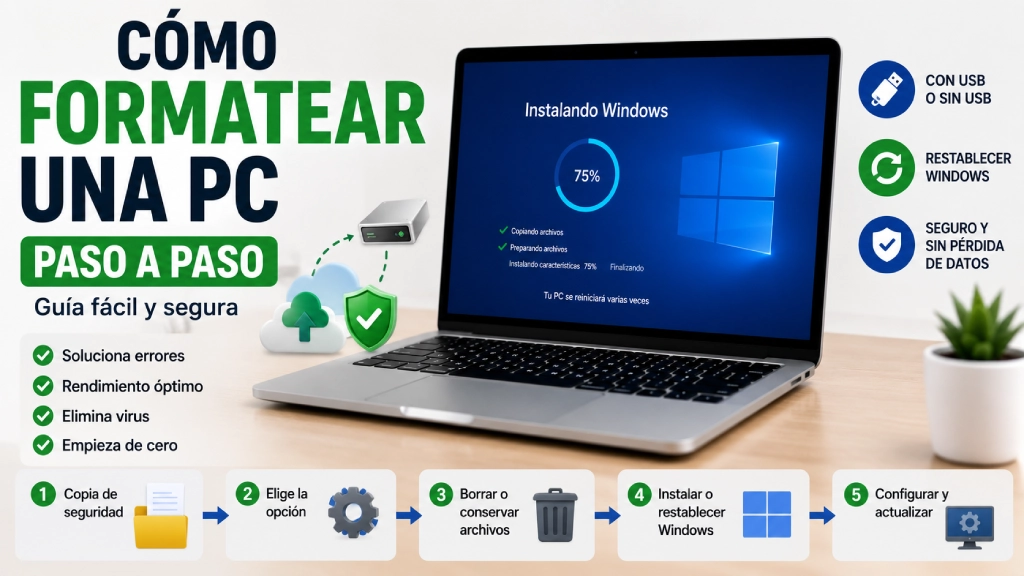
Formatting a PC can help you fix errors, remove accumulated files, prepare a computer for sale, get rid of persistent viruses, or make Windows run like new again. But before you begin, it's worth knowing which option to choose, because resetting Windows while keeping your files is not the same as erasing everything and installing the system from scratch.
In this guide, you'll learn how to format a PC step by step in Windows 10 and Windows 11, what to do before you start, how to reset your computer to factory settings, how to use a USB installation drive, and which mistakes to avoid so you don't lose important data.
Quick summary
To format a PC, first back up your files, make sure you have your passwords and licenses, and choose between resetting Windows from Settings or reinstalling it using a USB drive. If you want to keep your documents, select “Keep my files.” If you want to sell the computer or start from scratch, select “Remove everything.”
What Does It Mean to Format a PC?
Formatting a PC means erasing some or all of the system's data and preparing the computer for a fresh start. In practice, many people use “format” to refer to several different actions: resetting Windows, reinstalling the operating system, deleting all files, or restoring the computer to its factory settings.
So, before you do anything, it's worth understanding the difference between these options:
| Option | What it does | When to choose it |
|---|---|---|
| Reset Windows | Reinstalls Windows from System Settings. | When your PC isn't working properly but you can still access Windows. |
| Keep my files | Reinstalls Windows while keeping personal documents. | If you want to fix the system without deleting your main files. |
| Remove everything | Deletes files, apps, and settings. | If you want a fresh start or are preparing the PC for someone else. |
| Clean installation using a USB drive | Installs Windows from external media. | If Windows won't start, or you want to delete partitions or perform a full installation. |
Before Formatting: The Essentials
Before formatting your PC, take a few minutes to save everything important. Many data losses happen because people start the process too quickly.
Review this checklist before continuing:
- Back up important documents, photos, videos, and files.
- Save files from your Desktop, Downloads, and Documents folders.
- Export your browser bookmarks if you need them.
- Write down important passwords or make sure you can access your password manager.
- Save the licenses for paid software.
- Make sure you know the password for your Microsoft account or local account.
- Keep the charger handy if you're using a laptop.
- Disconnect any external drives you don't want to erase.
If you're not sure whether a file is important, copy it. It's better to save more than to lose something you can't recover later.
Does Formatting Delete Everything?
It depends on the option you choose. If you select an option to keep your files, Windows may retain personal documents, but it will remove installed apps and many settings. If you choose to remove everything, your files, apps, and settings will be deleted.
The safest option for completely wiping the computer is “Remove everything,” especially if you're going to sell, give away, or hand the PC over to someone else.
On the other hand, if you only want to fix Windows errors and continue using the computer, you may want to start with “Keep my files.”
How to Format a PC with Windows 11
If your computer runs Windows 11 and you can still access the system, you can reset it from Settings.
- Open the Start menu.
- Go to Settings.
- Go to System.
- Go to Recovery.
- Look for the Reset this PC option.
- Click Reset PC.
- Choose between Keep my files and Remove everything.
- Select cloud download or local reinstall.
- Review the summary and confirm the process.
Your computer may restart several times during the process. Don’t turn it off manually, and if it’s a laptop, keep it plugged in.
How to format a Windows 10 PC
The process is very similar in Windows 10, although some menu paths differ slightly.
- Open the Start menu.
- Go to Settings.
- Go to Update & Security.
- Select Recovery.
- Under Reset this PC, click Get started.
- Choose whether to keep your files or remove everything.
- Select the type of reinstall.
- Follow the on-screen instructions.
If your computer is very slow, has a lot of errors, or hasn’t had a thorough cleanup in years, removing everything may be the most effective option. But remember to back up your files first.
Keep my files or remove everything: which should you choose?
This is one of the most important decisions when formatting a PC. Choosing the wrong option could cause you to lose data or leave the problem unresolved.
| Option | What it keeps | What it removes | Recommended if… |
|---|---|---|---|
| Keep my files | Personal documents. | Apps, programs, and settings. | You want to repair Windows without deleting your main files. |
| Remove everything | Nothing or almost nothing. | Files, apps, user accounts, and settings. | You want a fresh start or are giving the computer to someone else. |
If you’re selling or giving away the computer, choose Remove everything. If you just want to improve its performance without losing your documents, try Keep my files first.
Cloud download or local reinstall
When resetting Windows, you may see the option to choose between a cloud download and a local reinstall.
| Option | What it does | Advantage | Drawback |
|---|---|---|---|
| Cloud download | Downloads a copy of Windows from the internet. | Can be useful if local files are corrupted. | Requires a good internet connection and may take longer. |
| Local reinstall | Uses files already on the computer. | Doesn’t require downloading as much data. | May fail if the system is badly damaged. |
If you have a good internet connection and suspect Windows is damaged, a cloud download may be a good option. If you don’t have a stable connection, try a local reinstall.
How to reset a PC to factory settings
Resetting a PC to factory settings means returning it to a clean state similar to its original condition. On some computers, this may also restore manufacturer apps, drivers, or preinstalled tools.
To do this:
- Back up your files.
- Go to Windows recovery settings.
- Select Reset this PC.
- Choose Remove everything.
- Choose whether to remove only your files or fully clean the drive.
- Confirm the process and wait for it to finish.
If you’re keeping the computer, deleting files may be enough. If you’re selling, giving it away, or handing it over, it’s better to choose a more thorough clean.
How to Format a PC Without a USB Drive
If Windows is still working, you can format or reset your PC without using a USB drive. This is the easiest option for most users.
All you need to do is:
- Sign in to Windows.
- Open the recovery settings.
- Choose Reset this PC.
- Choose whether to keep your files or remove everything.
- Follow the wizard’s steps.
This option is suitable if your computer starts up correctly and you don’t need to delete partitions manually.
How to Format a PC Using a USB Drive
Formatting a PC with a USB drive is useful if Windows won’t start, if you want to perform a clean installation, or if you’d prefer to install Windows from scratch.
You’ll need:
- A USB flash drive with enough storage space.
- An internet connection.
- The official tool for creating Windows installation media.
- Time to download and prepare the installer.
- Your important files backed up beforehand.
Basic steps:
- Download the official Windows Media Creation Tool.
- Create a Windows installation USB drive.
- Connect the USB drive to the computer you want to format.
- Restart the computer.
- Open the boot menu or BIOS/UEFI.
- Choose to boot from the USB drive.
- Follow the Windows installation wizard.
- Choose the drive or partition where you want to install Windows.
- Complete the installation and set up Windows.
Be very careful when selecting the drive or partition. If you delete the wrong partition, you could lose data on another drive.
How to Open the Boot Menu to Use a USB Drive
To boot from a USB drive, you usually need to press a key as soon as you turn on the computer. The key varies by manufacturer.
| Brand or device | Common keys | Note |
|---|---|---|
| HP | Esc, F9, F10 | May open the boot menu or BIOS. |
| Lenovo | F12, F2, Novo button | Some laptops have a special button. |
| Dell | F12, F2 | F12 usually opens the boot menu. |
| Acer | F12, F2, Delete | You may need to enable F12 in the BIOS. |
| ASUS | Esc, F2, Delete | Depends on the model. |
| MSI / Desktop PC | F11, Del | Del usually opens the BIOS/UEFI. |
If you’re not sure which key to use, search for your computer’s exact model along with “boot menu” or “BIOS”.
You may also find this Recomiendo.es guide on how to enter the BIOS helpful.
How to Format a PC If Windows Won’t Start
If Windows won’t start, you can still try to repair or reinstall the system using the recovery environment or a USB drive.
Options include:
- Use Startup Repair.
- Reset this PC from the recovery environment.
- Restore from a restore point.
- Boot from a Windows installation USB drive.
- Reinstall Windows from scratch.
If the drive contains important files that you haven’t backed up, don’t delete any partitions yet. In that case, it may be better to try to recover the data before formatting.
How to Format a PC Before Selling It
If you’re selling, giving away, or handing over your PC, simply deleting files manually isn’t enough. It’s best to reset the device by removing everything and cleaning the drive to reduce the risk of someone recovering your personal information.
Recommended steps:
- Back up your files.
- Sign out of important accounts.
- Unlink the device from personal services if needed.
- Open Windows Recovery.
- Select Reset this PC.
- Choose Remove everything.
- Select Clean the drive if that option appears.
- Wait for the process to finish.
Afterwards, don’t sign in with your personal account again if the device will no longer be yours.
How Long Does It Take to Format a PC?
The time depends on the type of computer, the drive, the option you choose, and whether files are downloaded from the internet.
| Process | Estimated time | Depends on… |
|---|---|---|
| Reset while keeping files | 30 minutes to 2 hours | Drive speed and system condition. |
| Remove everything | 1 to 3 hours | Amount of data and type of cleanup. |
| Installation from USB | 30 minutes to 2 hours | USB drive, disk, processor, and configuration. |
| Full drive cleanup | Several hours | Drive size and level of erasure. |
Don’t interrupt the process, even if it seems slow. If you’re using a laptop, keep it plugged into the charger.
What to Do After Formatting a PC
Once formatting or reinstallation is complete, there are still a few important steps to get your computer ready.
- Set up Windows with your account or a local user account.
- Connect the computer to the internet.
- Run Windows Update.
- Install any missing drivers.
- Install a browser, antivirus software if you use it, and any necessary programs.
- Restore your files from the backup.
- Check that the sound, Wi-Fi, Bluetooth, and display are working properly.
- Activate Windows if necessary.
It’s normal for Windows to download updates during the first few hours, and for your computer to seem busier than usual.
Common problems after formatting
Some problems can occur after formatting a PC, especially if drivers are missing or the installation did not complete properly.
| Problem | Possible cause | Recommended solution |
|---|---|---|
| No internet connection | Network or Wi-Fi driver is missing. | Connect via Ethernet or download the drivers from the manufacturer's website. |
| No sound | Audio driver is missing. | Run Windows Update or install the correct driver. |
| Display looks wrong | Graphics driver is missing. | Install the driver from Intel, AMD, NVIDIA, or the manufacturer. |
| Windows won't activate | License not detected or incorrect edition. | Check the installed edition and the associated account. |
| Files are missing | No backup was made. | Check your backups, OneDrive, external drive, or cloud services. |
Mistakes to avoid when formatting a PC
Here are the most common mistakes and the ones most likely to cause problems:
- Formatting without making a backup.
- Not checking Desktop, Downloads, and Documents.
- Deleting the wrong partition.
- Unplugging the laptop during the process.
- Installing a different edition of Windows than the one covered by the license.
- Using installers from questionable sources.
- Not saving the licenses for important programs.
- Forgetting passwords for linked accounts.
- Not updating Windows after installation.
If you're not sure which partition to delete or which option to choose, it's better to stop and check before confirming an irreversible deletion.
Formatting, resetting, or reinstalling: a quick comparison
Although these terms are often used interchangeably, they don't mean exactly the same thing.
| Term | Practical meaning | Difficulty level |
|---|---|---|
| Reset | Use the Windows tool to return the system to a clean state. | Easy. |
| Format | Erase a drive or partition to prepare it for reuse. | Intermediate. |
| Reinstall | Install Windows again, from recovery or a USB drive. | Intermediate. |
| Clean installation | Erase the previous system and install Windows from scratch. | More advanced. |
For most users, the simplest option is Reset this PC. A clean installation from a USB drive is better suited to advanced users or situations where Windows won't start properly.
Will formatting my PC remove my Windows license?
On many modern computers, the Windows license is linked to the hardware or Microsoft account. So, after reinstalling the same edition of Windows, it should usually activate automatically once the computer connects to the internet.
Even so, before formatting, check which edition you have installed: Home, Pro, or another. Installing a different edition could cause activation problems.
Is It Worth Formatting a Slow PC?
Formatting can help if your PC is slow because of too many installed programs, system errors, malware, outdated settings, or too many background processes. But it is not always a permanent solution.
If your computer has little RAM, a very old hard drive, or limited hardware, it will still have some performance issues even after you reinstall Windows.
Before formatting, you can also try:
- Uninstalling programs you don't use.
- Cleaning up startup apps.
- Updating Windows.
- Running a security scan.
- Freeing up disk space.
- Upgrading to an SSD if you're still using a mechanical hard drive.
Conclusion: How to Format a PC Safely
To format a PC step by step, always start by backing up your files. Then decide whether you want to keep your files, remove everything, or perform a clean installation using a USB drive. If Windows still starts, resetting your PC from Settings is usually the easiest option. If the system isn't working or you want to start completely from scratch, you can use a Windows installation USB drive.
The key is not to rush: back up your data, review the options carefully, and make sure you're erasing the correct drive. A properly completed format can leave your computer cleaner and more stable, ready to keep running for a long time.
If you're interested in more practical technology guides, you can explore our technology, internet, or education content. You may also be interested in our guide on how to access the BIOS.
Frequently Asked Questions About Formatting a PC
How do you format a PC step by step?
First, back up your files. Then go to Settings, open Recovery, select Reset this PC, and choose whether to keep your files or remove everything. Follow the on-screen instructions and wait for Windows to complete the process.
Does formatting a PC delete all files?
It depends on the option you choose. If you select Keep my files, Windows can preserve your personal documents but will remove apps and settings. If you choose Remove everything, your files, programs, and settings will be deleted.
How do you format a PC without a USB drive?
If Windows still starts, you can format your PC without a USB drive by going to Settings > Recovery > Reset this PC. From there, you can choose to keep your files or remove everything.
How do you format a PC using a USB drive?
Create a Windows installation USB drive, boot your computer from it, and follow the installation wizard. Make sure you choose the correct drive or partition so you don't accidentally erase the wrong data.
How Long Does It Take to Format a PC?
It can take anywhere from 30 minutes to several hours, depending on the type of drive, your computer's speed, the amount of data, and whether you choose a quick or full wipe.
What should I do before formatting my PC?
Back up your files, save your passwords and licenses, check folders such as Desktop and Downloads, disconnect any external drives you don't want to erase, and keep your laptop plugged into a power source.
Will I lose my Windows license when I format my PC?
Usually not, as long as you reinstall the same edition of Windows and your computer had a valid license. In many cases, activation is restored automatically when you connect the computer to the internet.